

Phone calendar sync
You can sync your Masters schedule with your phone calendar, Google Calendar, or Yandex Calendar.
Synchronization works one way only: from Masters → to the connected calendar. Events that you create in your system or third-party calendar are not transferred to Masters.
💡 Events starting from the 1st day of the previous month are transferred to the calendar. Earlier events from Masters will not appear in your phone calendar.
iOS and Google Calendar
Section titled “iOS and Google Calendar”If you want to connect the Masters calendar to Google Calendar on iOS, first copy the link to the Masters calendar, then add it to Google Calendar.
How to copy the Masters calendar link
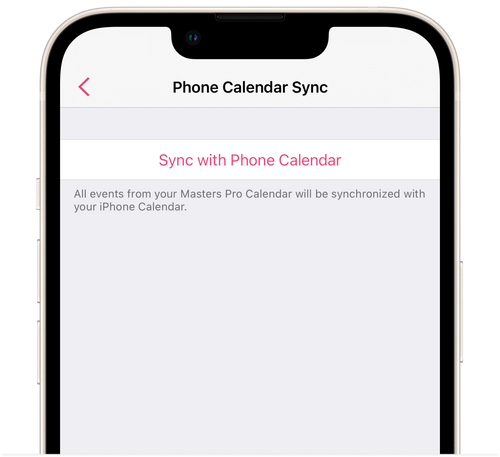
Section titled “How to copy the Masters calendar link”- In the Masters app, go to Settings → Notifications → Phone Calendar Sync.
- Tap Add to phone calendar.
- Select the entire link and copy it.
If you cannot copy the link this way and the Masters calendar is already connected to your iPhone calendar:
- Open iPhone Calendar → Calendars tab at the bottom of the screen.
- Tap the information icon (i) next to the MASTERS calendar.
- Go to Subscription Details.
- Copy the calendar link.
How to add the calendar to Google Calendar
Section titled “How to add the calendar to Google Calendar”- Open the web version of Google Calendar: https://calendar.google.com/.
- In the section on the left, click + next to Other calendars.
- Select From URL.
- Paste the copied link.
- Click Add calendar.
Once connected, the Masters calendar will appear in your Google account and will automatically sync across devices where this Google account is connected.
Android and Google Calendar
Section titled “Android and Google Calendar”If you use Android, there are several ways to connect your Masters schedule to Google Calendar.
Via the device calendar
Section titled “Via the device calendar”If your Android device calendar is linked to a Google account, you can first connect Masters to the device calendar. In this case, events may also appear in Google Calendar.
To connect the calendar:
- In the Masters app, go to Settings → Notifications → Calendar Sync.
- In the Device Calendar section, tap Connect.
- Open the Google Calendar mobile app.
- Go to Settings → Manage accounts.
- Under Other accounts (not Google), find the Masters calendar.
- If the toggle next to it is turned off, turn it on.
After that, events from your Masters schedule will be transferred to the device calendar and, if it is linked to a Google account, will appear in Google Calendar.
Direct sync with Google Calendar on Android
Section titled “Direct sync with Google Calendar on Android”If you have Masters / Masters Salon version 3.68 or later installed, you can connect Google Calendar directly.
The option to sync with the device calendar also remains available. You can connect either option or both at the same time.
💡 Please note. On some Android devices, the device calendar is already linked to a Google account. If you connect both the device calendar and direct Google Calendar sync at the same time, events may be duplicated. If a warning appears, you can continue with the connection or keep only one synchronization option.
How to connect Google Calendar
Section titled “How to connect Google Calendar”- In Masters, go to Settings → Notifications → Phone Calendar Sync.
- Tap Continue with Google.
- In the browser that opens, sign in to the required Google account.
- Allow Masters to access your calendar.
- Return to the Masters app.
Once connected, the Masters calendar will appear in Google Calendar. Events from Masters will be synced with it automatically.
To disconnect the integration, go to Calendar Sync.
Yandex Calendar
Section titled “Yandex Calendar”If you want to connect your Masters schedule to Yandex Calendar, you will need the Masters subscription calendar link — a webcal link.
To get the link:
- In the Masters iOS app, go to Settings → Notifications → Phone Calendar Sync.
- Tap Add to phone calendar.
- Select the entire link and copy it.
On iOS, you can also copy the link manually from an already connected Masters calendar:
- Open iPhone Calendar → Calendars tab.
- Tap the information icon (i) next to the MASTERS calendar.
- Go to Subscription Details.
- Copy the link.
How to connect Yandex Calendar in the iOS or Android app
Section titled “How to connect Yandex Calendar in the iOS or Android app”- Copy the Masters calendar link.
- Open the Yandex Calendar app.
- Tap your avatar in the bottom-right corner.
- Go to Calendar.
- Select Import → Other → By link.
- In the Calendar link field, paste the copied Masters calendar link.
- Enter a name for the calendar. If necessary, configure its color and other settings.
- Tap Import.
After that, the Masters calendar will appear in the list of available calendars.
How to connect Yandex Calendar in a desktop browser
Section titled “How to connect Yandex Calendar in a desktop browser”- Copy the Masters calendar link.
- Open Yandex Calendar in your browser: https://calendar.yandex.ru/.
- In the left panel, under My calendars, click + Add → Import.
You can also add the calendar through Subscriptions → + Add.
- Paste the copied Masters calendar link.
- Click Import.
If you are adding the calendar through Subscriptions, click Create.
After that, the Masters calendar will appear in Yandex Calendar.
💡 Please note. New events may appear in Yandex Calendar with a delay. Updates may take anywhere from several hours to 1–2 days. The update speed depends on Yandex Calendar.